Class story library
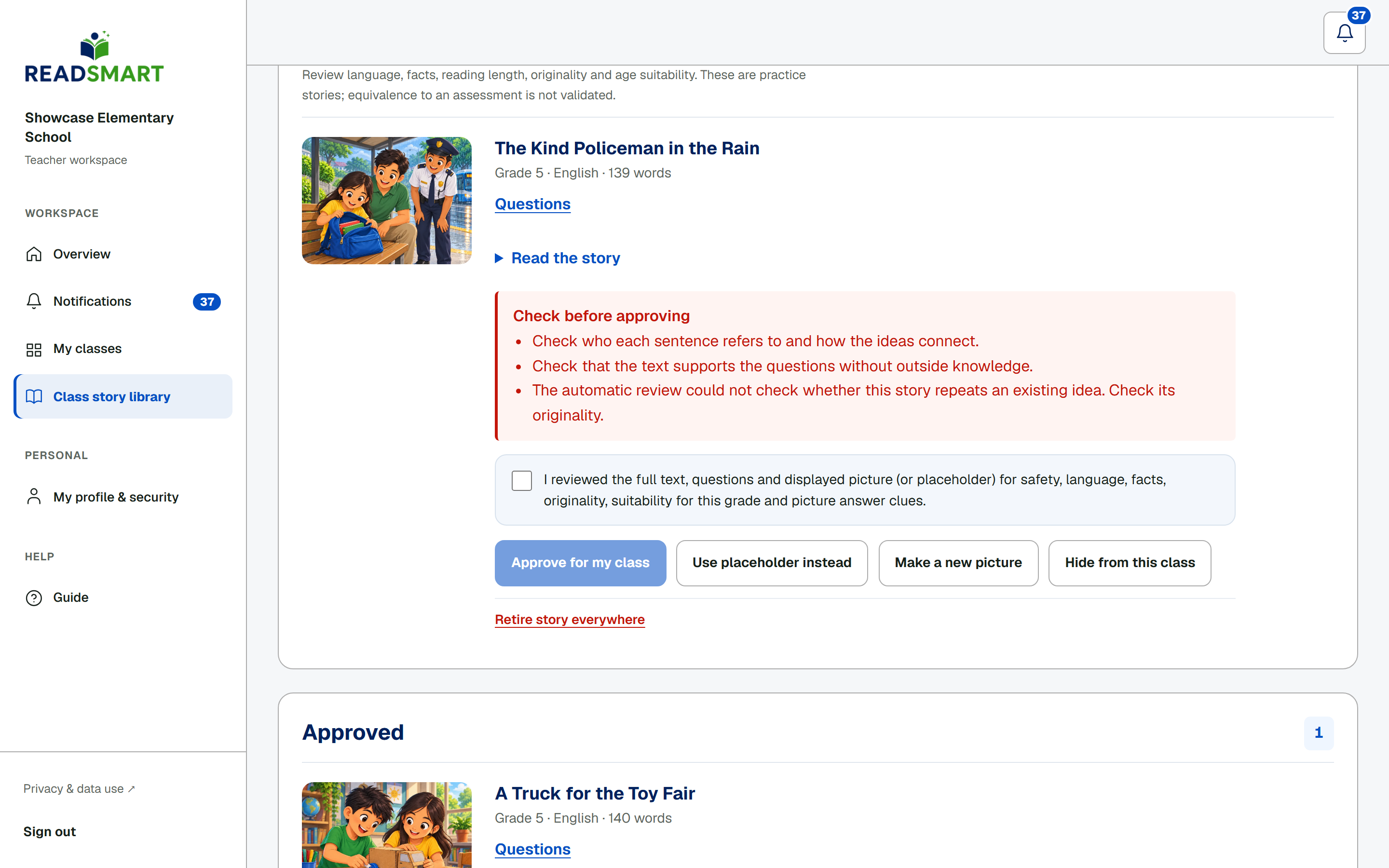
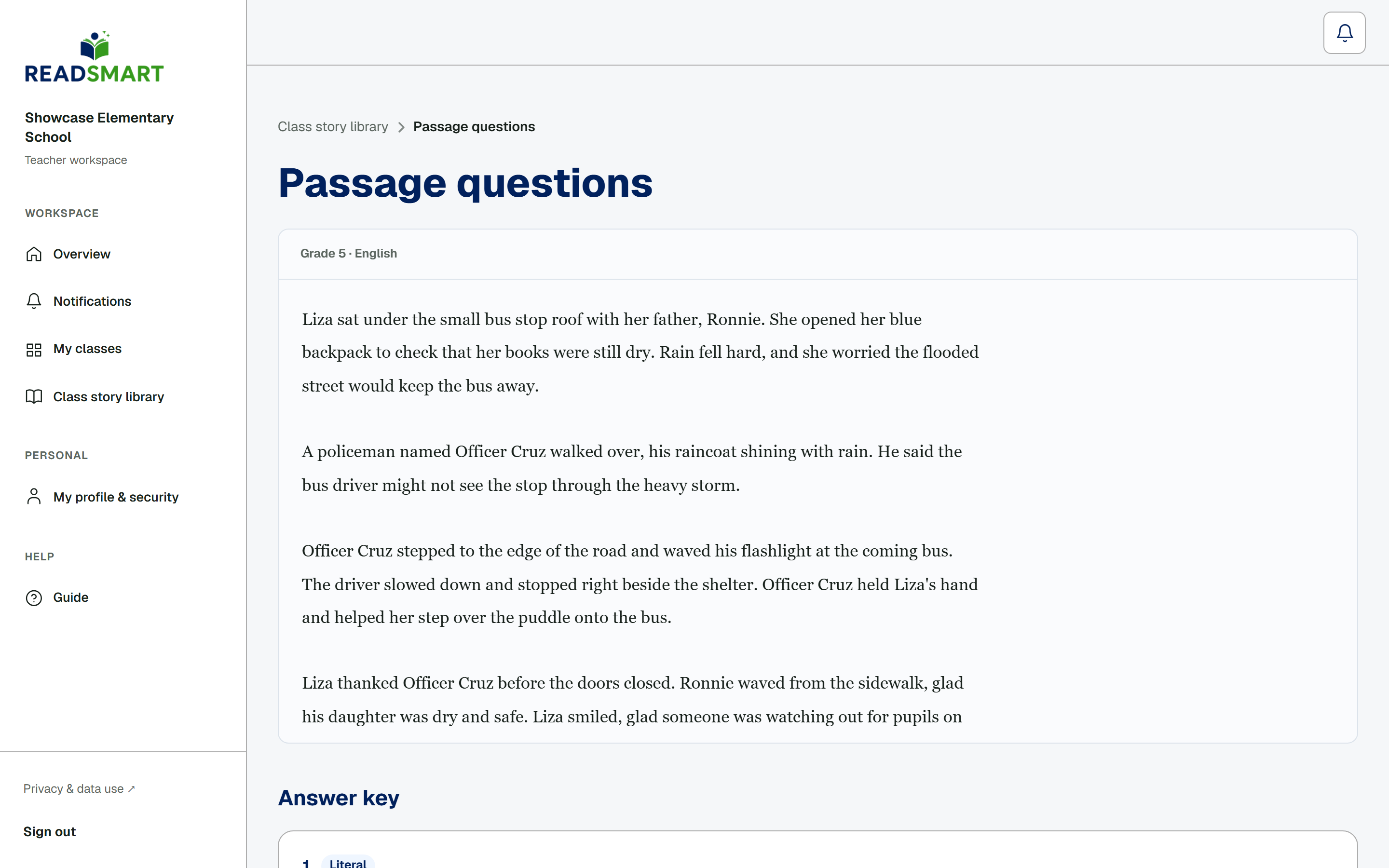
The Pupil story requests switch turns on or off whether students in this class can ask READSmart to write new stories; turning it off does not remove stories already approved. Each new story waits for your review: read it, check the picture, tick the safety checkbox, then approve it for your class. From there you can also share a story with the whole school, hide it from just this class, or retire it everywhere. Tap Questions to check or edit a story's questions; saving an edit keeps a copy for your school, so other schools keep the original.
Some stories show Check before approving. These notes point to facts, unclear links, unfamiliar words, sentence difficulty, missing background or weak question clues. A note may also say that a plot, discovery or ending repeats another story. Open Compare the similar idea to read the reason and the two passage excerpts. Sharing a topic is fine. Changing names or wording alone does not make the story new. If the automatic review could not check originality, compare it with stories your class already has. Read the whole passage and check whether it suits the grade and language. Check that each question has one supported answer. An inference needs clues in the passage. The picture should match the scene without giving away an answer the student should work out by reading. Approve only when these checks are resolved. These are original practice stories; matching Phil-IRI patterns does not make their difficulty validated. The story generation design page explains the reference profiles and review steps.